Showing posts with label AWS. Show all posts

Saturday, 13 October 2018

AWS Cognito integration with lambda functions using the Serverless Framework

Problem

I have been writing an AWS lambda service based on the Serverless Framework. The question is, how do I secure the lambda using AWS Cognito?

Note that this post deals with Serverless Framework configuration and not how you setup Cogito user pools and clients etc. It is also assumed that you understand the basics of the Serverless Framework.

Solution

Basic authorizer configuration

Securing a lambda function with Cognito can be very simple. All you need to do is add some additional configuration – an authorizer - to your function in the serverless.yml file. Here’s an example:

functionName:
    handler: My.Assembly::My.Namespace.MyClass::MyMethod
    events:
      - http: 
          path: mypath/{id}
          method: get
          cors:
            origin: '*'
            headers:
                - Authorization
            authorizer:
              name: name-of-authorizer 
              arn: arn:aws:cognito-idp:eu-west-1:000000000000:userpool/eu-west-1_000000000

Give the authorizer a name (this will be the name of the authorizer that’s created in the API gateway). Also provide the ARN of the user pool containing the user accounts to be used for authentication. You can get the ARN from the AWS Cognito console.

SNAGHTML2d99d5f

After you have deployed your service using the Serverless Framework (sls deploy) an authorizer with the name you have given it will be created. You can find it in the AWS console.
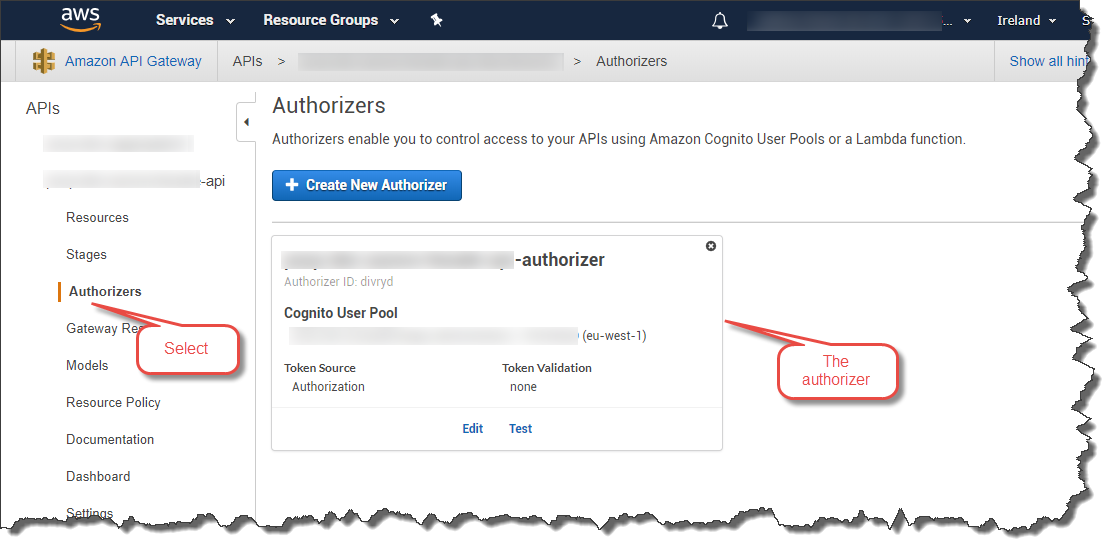
SNAGHTML2dc34b3There is a limitation with this approach however. If you add an authorizer to each of you lambda functions like this you the number of authorizers will quickly proliferate. AWS limits the number of authorizers per API to 10 so for complex APIs you may run out of authorizers.

An alternative is to use a shared authorizer.

Configuring a shared authorizer

It is possible to configure a single authorizer with the Serverless Framework and share it across all the functions in your API. Here’s an example:

functionName:
    handler: My.Assembly::My.Namespace.MyClass::MyMethod
    events:
      - http: 
          path: mypath/{id}
          method: get
          cors:
            origin: '*'
            headers:
                - Authorization
          authorizer:
            type: COGNITO_USER_POOLS
            authorizerId: 
              Ref: ApiGatewayAuthorizer

resources:
  Resources:
    ApiGatewayAuthorizer: 
      Type: AWS::ApiGateway::Authorizer
      Properties: 
        AuthorizerResultTtlInSeconds: 300
        IdentitySource: method.request.header.Authorization
        Name: name-of-authorizer
        RestApiId: 
          Ref: "ApiGatewayRestApi"
        Type: COGNITO_USER_POOLS
        ProviderARNs: 
          - arn: arn:aws:cognito-idp:eu-west-1:000000000000:userpool/eu-west-1_000000000

As you can see we have created an authorizer as a resource and referenced it from the lambda function. So, you can now refer to the same authorizer (called ApiGatewayAuthorizer in this case) from each of your lambda functions. Only one authorizer will be created in the API Gateway.

Note that the shared authorizer specifies an IdentitySource. In this case it’s an Authorization header in the HTTP request.

Accessing an API using an Authorization header

Once you have secured you API using Cognito you will need to pass an Identity Token as part of your HTTP request. If you are calling your API from a JavaScript-based application you could use Amplify which has support for Cognito.

For testing using an HTTP client such as Postman you’ll need to get an Identity Token from Cognito. You can do this using the AWS CLI. Here’s as example:

aws cognito-idp admin-initiate-auth --user-pool-id eu-west-1_000000000 --client-id 00000000000000000000000000 --auth-flow ADMIN_NO_SRP_AUTH --auth-parameters USERNAME=user_name_here,PASSWORD=password_here --region eu-west-1

Obviously you’ll need to change the various parameters to match your environment (user pool ID, client ID, user name etc.). This will return 3 tokens: IdToken, RefreshToken, and BearerToken.

Copy the IdToken and paste it in to the Authorization header of your HTTP request.

SNAGHTML2f7516f

That’s it.

Accessing claims in your function handler

As a final note this is how you can access Cognito claims in your lambda function. I use .Net Core so the following example is in C#. The way to get the claims is to go via the incoming request object:

foreach (var claim in request.RequestContext.Authorizer.Claims)
{
    Console.WriteLine("{0} : {1}", claim.Key, claim.Value);
}


See also

Saturday, 4 August 2018

How to check that AWS Greengrass is running on a Raspberry Pi

This post refers to a Raspberry Pi 3 B+ running Raspbian Stretch.

To check that AWS Greengrass is running on the device run the following command:

ps aux | grep -E 'greengrass.*daemon'

image

A quick reminder of Linux commands.

The ps command displays status information about active processes. The ‘aux’ options are as follows:

a = show status information for all processes that any terminal controls
u = display user-oriented status information
x = include information about processes with no controlling terminal (e.g. daemons)

The grep command searches for patterns in files. The –E option indicates that the given PATTERN – ‘greengrass.*daemon’ in this case - is an extended regular expression (ERE).

Friday, 3 August 2018

Automatically starting AWS Greengrass on a Raspberry Pi on system boot

This post covers the steps necessary to get AWS Greengrass to start at system boot on a Raspberry Pi 3+ running Raspbian Stretch. The Greengrass software was at version 1.6.0.

I don’t cover the Greengrass installation or configuration process here. It is assumed that has already been done. Refer to this tutorial for details.

What we are going to do here is use systemd to run Greengrass on system boot.

Step 1

Navigate to the systemd/system folder on the Raspberry Pi.

cd /etc/systemd/system/

SNAGHTML32f6852

Step 2

Create a file called greengrass.service in the systemd/system folder using the nano text editor.

sudo nano greengrass.service

Copy in to the file the contents described in this document.

image

Save the file.

image

Step 3

Change the permissions on the file so they are executable by root.

sudo chmod u+rwx /etc/systemd/system/greengrass.service

image

Step 4

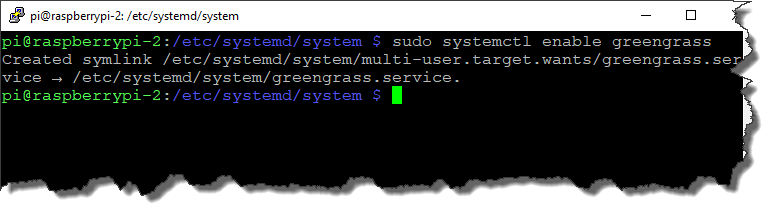
Enable the service.

sudo systemctl enable greengrass

SNAGHTML33471df

Step 5

You can now start the Greengrass service.

sudo systemctl start greengrass

SNAGHTML335429d

You can check that Greengrass is running.

ps –ef | grep green

SNAGHTML3364160

Reboot the system and check that Greengrass started after a reboot.

SNAGHTML3372dd3

Friday, 3 August 2018

Tuesday, 3 July 2018

Preparing a Raspberry Pi for AWS Greengrass

This article refers to a Raspberry Pi 3 B+. What follows are just some notes taken by me as I progressed through the steps described here:

https://docs.aws.amazon.com/greengrass/latest/developerguide/module1.html

For details of the process please refer to the document above.

One issue I did encounter was when running the Greengrass dependency checker. On my Raspberry Pi I struggled to get the memory cgroup configured correctly. The solution is included below (see Step 5).

Step 1

Initial setup of the Raspberry Pi and access via SSH was simply a normal setup process. Once connected I needed to start the first steps specific to AWS Greengrass starting with adding users.

Step 2

Basically this is Module 1: Step 9 in the document linked to above.

SNAGHTML850b3e0

Step 3

Module 1: item10 calls for an upgrade to the Linux kernel. I chose to ignore this step for now. It will be interesting to see if there are any issues.

SNAGHTML852ee7e

The kernel version of my OS was 4.14.50 although the Greengrass instructions suggest 4.9.30.

Step 4

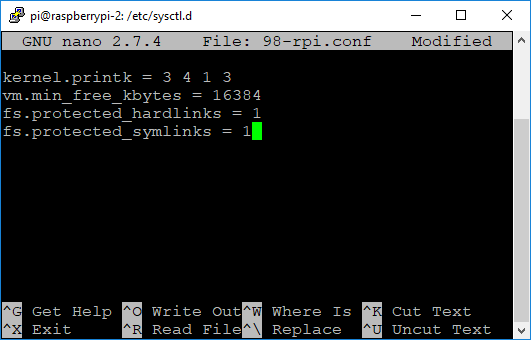
Module 1: item11 is locking down security. No real issues encountered.

SNAGHTML8556fab

image

SNAGHTML856523b

Step 5

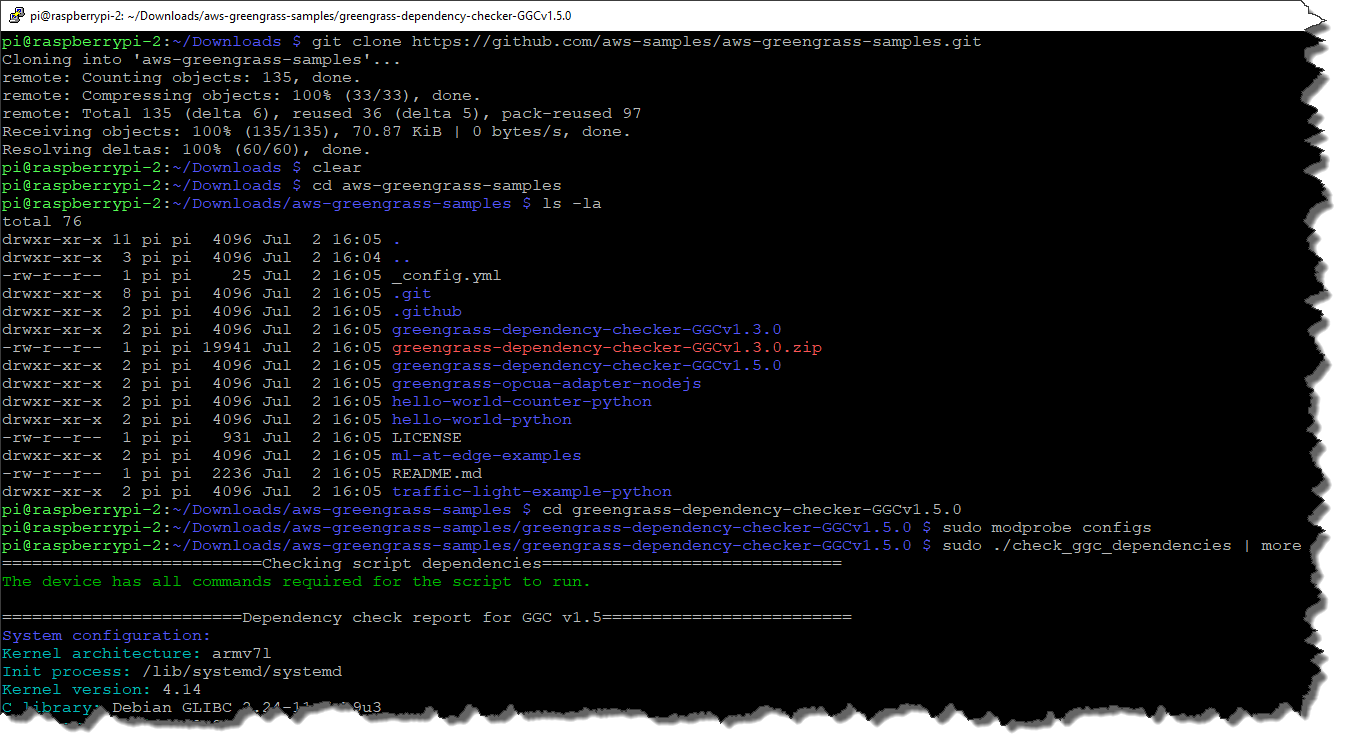
So now I was at Module 1: item 12 and ready to check dependencies. This was where the only significant issue was encountered. The initial steps all progressed well until I ran the AWS Greengrass dependency checker. This showed an issue with the memory cgroup dependency.

SNAGHTML858dbd3

SNAGHTML859e40c

SNAGHTML85b4a34

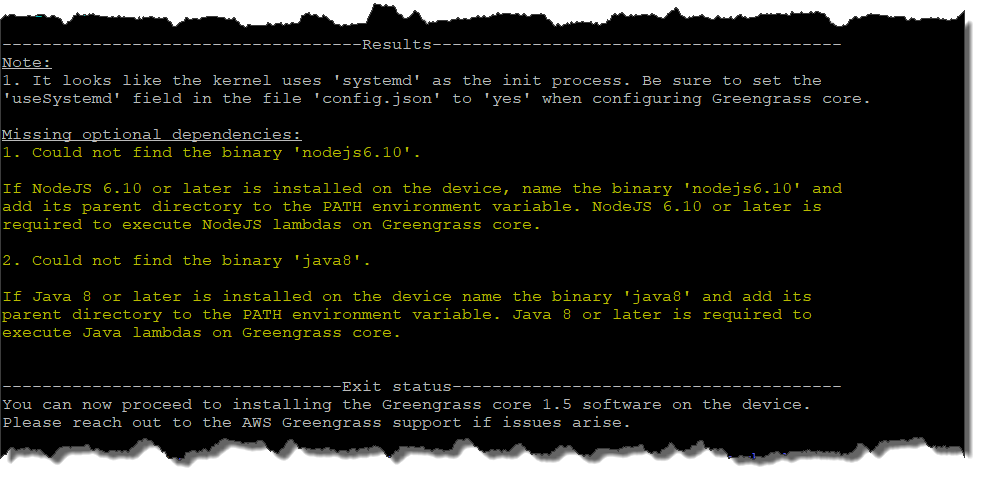
The dependency checker showed the following message regarding a missing required dependency:

1. The ‘memory’ cgroup is not enabled on the device.
Greengrass will fail to set the memory limit of user lambdas.

For details about cgroups refer to the following document (although not specific to Raspian the information should still apply):

https://sysadmincasts.com/episodes/14-introduction-to-linux-control-groups-cgroups

Solution

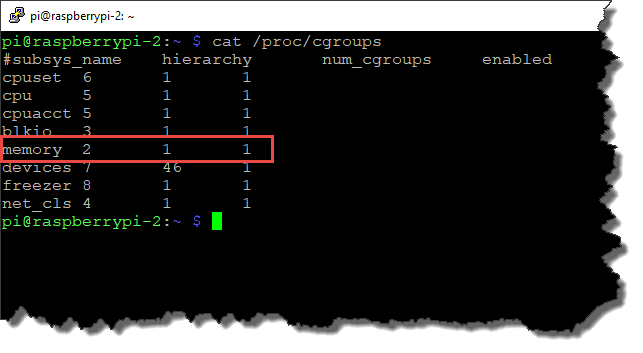
Running “cat /proc/cgroups” initially showed that memory subsys_name was not enabled (set to 0). So, I edited the “cmdline.txt” file located in “/boot” with the nano text editor.

SNAGHTML8696d58

I added the following items to the line in that file:

cgroup_memory=1 cgroup_enable=memory

NB: Both cgroup_memory and cgroup_enable were required to make this work.

The total line from my cmdline.txt file ended up looking like this:

dwc_otg.lpm_enable=0 console=serial0,115200 console=tty1 cgroup_memory=1 cgroup_enable=memory root=PARTUUID=c20ec4c3-02 rootfstype=ext4 elevator=deadline fsck.repair=yes rootwait

I did a reboot and checked /proc/cgroups to see if the change had taken effect. It had with the enabled flag set to 1.

SNAGHTML86e9941

Time to recheck the AWS Greengrass dependencies.

SNAGHTML86fcc24

No issues this time.

I did however note the following message:

Note :
1. It looks like the kernel uses ‘systemd’ as the init process. Be sure to set the ‘useSystemd’ field in the file ‘config.json’ to ‘yes’ when configuring Greengrass core.

Note to self: Don’t forget to do that!

This left me ready to install the Greengrass core software:

https://docs.aws.amazon.com/greengrass/latest/developerguide/module2.html