Sunday, 6 December 2015

The Inside Of My Head–No.8

I do enjoy a good doodle and I thought I’d show you my latest effort. My doodles can take weeks or even months to complete and they are typically done in the notebook I use for work.

Here’s a picture of the notebook with the original full page doodle.

IMG_0006c-book

And here’s a scan of the page before any additional processing.

IMG_0006c-gs-sm

What I like to do is to use some basic image processing to add a splash of colour. Nothing too fancy - they are only doodles after all - but adding some layers to the image using an appropriate blend mode can have quite an effect.

Here I have added a series of layers using a burn blend mode with a different colour in each layer. By changing the amount of blend mode the subtlety of the effect can be varied.

IMG_0006c-sm

There’s plenty more where that came from!

Sunday, 15 November 2015

The basics of garbage collection in .Net

Time for some revision again. Every now and then I like to go back to basics and refresh my memory about some aspect of software development and this time it’s garbage collection in .Net.

If you are looking for a more definitive explanation of garbage collection you can do no better than the Garbage Collection documentation on the MSDN site [1]. This post will only contain a few titbits that I find useful to remember. Go to the horse’s mouth for details.

What is the garbage collector?

One of the key differences between .Net development and many other programming paradigms is that you as the programmer are no longer directly responsible for memory management in your application. That’s not to say you can’t still have memory leaks and other problems – which is why having an understanding of garbage collection is important – but the business of allocating and de-allocating memory is largely taken out of your hands.

The garbage collector  is the automatic memory management component of the common language runtime (CLR). It provides a number of benefits including:

  • Enabling you to develop your application without having to free memory yourself.
  • Allocating objects on the managed heap efficiently (a description of the managed heap follows).
  • Reclaiming the memory occupied by objects that are no longer in use.
  • Providing memory safety by ensuring that an object cannot use the content of another object.


This isn’t a get out of jail free card though. You can still run in to a number of problems if you are careless including running out of memory (out of memory exceptions), high CPU usage during garbage collection and other performance problems.[2]

The managed heap

The managed heap is a segment of memory used to store managed objects in a .Net process and is allocated by the garbage collector when the process is initialised by the CLR.

Each process has one managed heap with all threads in the process allocating memory for objects on the same managed heap.

Actually, the managed heap can be considered as two heaps: the large object heap and the small object heap. The large object heap contains very large objects – usually arrays - that are 85,000 bytes and larger.

Managed heap generations

A nice performance optimisation of the garbage collector is to use generations of which there are 3 in the managed heap:

Generation Description
Generation 0
  • This is the youngest generation containing short-lived objects. 
  • Garbage collection occurs most frequently in this generation.
  • Newly allocated objects are implicitly generation 0 unless they are large objects (they go on the large object heap in a generation 2 collection).
  • Most objects are reclaimed for garbage collection in generation 0 and do not survive to the next generation.
Generation 1
  • Contains short-lived objects.
  • Serves as a buffer between short-lived objects and long-lived objects.
Generation 2
  • This generation contains long-lived objects.

Garbage collection occurs most frequently on Generation 0, and successively less frequently for generations 1 and 2. Details of how this optimisation works follow in the next section.

Generations 0 and 1 are are known as the ephemeral generations because the objects they contain are short-lived.

Untitled Diagram

Figure 1 – A super simplified view of the managed heap

What is garbage collection?

The garbage collector reclaims the memory occupied by dead objects. It also compacts live objects so that they are moved together and the dead space is removed. The overall effect is to make the managed heap smaller making more memory available to the process.

Garbage collection in the CLR is basically a mark and sweep operation which includes compaction of the managed heap. During the marking phase, the garbage collector runs through the objects in the managed heap - actually through a generation in the heap - and marks those objects it identifies as being live, that is those objects that still have references in the process. The remaining objects are considered as being dead and are therefore candidates for clean-up.

So, the phases of garbage collection are:

  • Marking – find and create a list of all live objects.
  • Relocating - update the references to the objects that will be compacted.
  • Compacting - reclaims the space occupied by the dead objects and compacts the surviving objects.


The survivors of a garbage collection run are promoted to the next generation. This is a neat trick because the garbage collector can perform garbage collections at a different rate for each generation (i.e.  more frequently at generation 0). If objects survive to generation 2 it’s a fair assumption that they will be hanging around in the application for a while. As a result garbage collection can be performed less frequently on generations 1 and 2 thereby saving system resources (garbage collection uses CPU).

So, the following rules describe how objects are promoted through the generations:

  • Objects that survive a generation 0 garbage collection are promoted to generation 1
  • Objects that survive a generation 1 garbage collection are promoted to generation 2
  • Objects that survive a generation 2 garbage collection remain in generation 2


Note that in the past the large object heap would not be compacted because of the performance penalty incurred by copying large objects around. From .NET Framework 4.5.1 onwards you can use the GCSettings.LargeObjectHeapCompactionMode property to compact the large object heap on demand.

When garbage collection occurs

Garbage collection occurs when:

  • the system has low physical memory, or
  • the memory that is used by the managed heap is greater than a constantly adjusted threshold, or
  • the GC.Collect method is called


Wrapping up

So that’s it for this quick look at garbage collection. There are a number of other concepts to look at including root objects, flavours of garbage collection (workstation or server), concurrency, and object finalization. All suitable subjects for future posts. Stay tuned.

References

[1] Garbage Collection, MSDN
[2] Garbage Collector Basics and Performance Hints, MSDN

Sunday, 15 November 2015

Saturday, 15 August 2015

Setting up a Consul cluster for testing and development with Vagrant (Part 2)

Using Vagrant to provision machines

Introduction

In the first post in this series (Setting up a Consul cluster for testing and development with Vagrant (Part 1)) we looked at the Vagrant files and associated files required to automatically provision a Consul cluster for testing and development. We didn’t get as far as actually provisioning any machines, which is what we will do here. If you haven’t read the previous post it’s probably a good idea to do so before going any further with this one.

All the files we created in the previous post are available on BitBucket.

Provisioning the Consul servers

If you recall from the previous post the Vagrant file defined 4 machines: 3 machines hosting Consul servers and another machine hosting a Consul client which runs the Consul Web UI.

I’m using CygWin so the first step is to change to the consul-cluster folder I created to contain all my working files, including the Vagrantfile. To provision all the machines in one go you can simply run the following command:

vagrant up
However, I don’t want to provision all the machines in one go. I want to use ConEmu to create a tab for each machine. To provision the machines one at a time you can simply pass in the name of the box to provision. For example:
vagrant up consul1

SNAGHTML5c69d15
If all goes well you should see Vagrant provision the machine. This means Vagrant will download the box image (hashicorp/precise64) and run the provisioner which in this case is a Shell provisioner that runs the provision.sh script.

The last thing in the provisioning script is starting the Consul agent in bootstrap mode. You should end up with something like this:


SNAGHTML5acb782
That’s it! You now have a virtual machine up-and-running with the Consul agent running in bootstrap mode.

You can now repeat this process for the remaining servers and the client. I open a new tab for each machine in ConEmu.

SNAGHTML5af0191
As each new instance is started you can see it joining the cluster:

SNAGHTML5b212b9

Back on the consul1 instance you will see the new Consul instance joining the cluster too:

SNAGHTML5b42ccf
It’s just a case of repeating the process for the consul3 instance to get the completed server cluster up-and-running.

Provisioning the Consul client

You provision the Consul client in exactly the same way as the server instances:
vagrant up consulclient

The client will join the cluster just like the servers. Once it’s up-and-running you will be able to access the Consul Web UI with a browser from your host workstation (go to http://172.20.20.40:8500/ui/). You should see something like this:


image


Excellent! Note there’s a data center ‘DC1’ listed top-right. If you were observant you’d have noticed we gave each Consul instance a data center in the config.json files. This is reflected in the Consul Web UI.

{
    "bootstrap": true,
    "server": true,
    "datacenter": "dc1",
    "data_dir": "/var/consul",
    "encrypt": "Dt3P9SpKGAR/DIUN1cDirg==",
    "log_level": "INFO",
    "enable_syslog": true,
    "bind_addr": "172.20.20.10",
    "client_addr": "172.20.20.10"
}

Halting a virtual machine

To halt a virtual machine you just need to have a command prompt (CygWin in my case) open in the directory containing the Vagrantfile and type “vagrant halt” followed by the name of the instance to stop. For example:
vagrant halt consul3

SNAGHTML5be7c94
Once the instance has halted you should see this reflected in the Consul Web UI.


image


If you want to halt all virtual machines in one go just type “vagrant halt” but don’t specify a machine name. Vagrant will iterate through all the virtual machines you have defined in the Vagrantfile and halt each one in turn.

Restarting a virtual machine

If you halt a virtual machine you can easily bring it back up again by typing “vagrant up” followed by the machine name. However, when you do this you’ll notice something different; the provisioner – and therefore provision.sh - doesn’t get run.


image


This makes perfect sense because the machine has already been provisioned, we’re just restarting it.

Never fear, Consul will be running because of the upstart script we created. We can check that by connecting to the virtual machine with SSH.

Connecting to a virtual machine with SSH

We can connect to a virtual machine with SSH by using another Vagrant command, “vagrant ssh” followed by the machine name:
vagrant ssh consul1

SNAGHTML5cd48e9

This connects you too the machine using the ‘vagrant’ user that is automatically created for you. We can now verify that the Consul agent is up-and-running:


SNAGHTML5cf3528

Forcing the provisioner to be run again

If you want to restart a virtual machine that has already been provisioned but you want to force the provisioning step to be rerun you have a few of options including passing in the “—provision” argument to “vagrant up”.

Refer to the Vagrant documentation for details.

Destroying virtual machines

One of the joys of using something like Vagrant is knowing you can completely remove a virtual machine from your system and be able to easily recreate it later, safe in the knowledge that it will be provisioned and configured exactly the same each time.

To completely remove a virtual machine from your system type “vagrant destroy” followed by the name of the machine to remove. As with most Vagrant commands if you omit the machine name Vagrant will iterate through all of the machines defined in the Vagrantfile and destroy them all.


SNAGHTML5d5b279

Wrapping up

So that’s it for this brief introduction to using Vagrant to provision a Consul cluster for testing and development. Don’t forget, the source files can be found on BitBucket.

Friday, 14 August 2015

Setting up a Consul cluster for testing and development with Vagrant (Part 1)

Setup and scripting

Introduction

When you start to move into a service-oriented way of working, particularly with microservices, the proliferation of services becomes an issue in itself. We know that we should avoid the ‘nano services’ anti-pattern and take care to identify our service boundaries pragmatically, perhaps using the DDD notion of bounded contexts to help discover those boundaries, but sooner or later you are going to have multiple services and perhaps multiple instances of services too.

Pretty quickly you’ll run in to a number of related problems. For example, how do client applications discover and locate services? If there are multiple instances of a service which one should the client use? What happens if an instance is down? How do you manage configuration across services? The list goes on.

A possible solution to these problems is Consul by Hashicorp. Consul is open source - being distributed under a MPL 2.0 license - and offers DNS and HTTP interfaces for managing service registration and discovery, functionality for health checking services so you can implement circuit breakers in your code, and a key-value store for service configuration. It is also designed to work across data centres.

This post isn’t going to look at the details of Consul and the functionality it offers. Rather it is focused on setting up a Consul cluster you can use for development or testing. Why a cluster? Well the Consul documentation suggests that Consul be setup this way:

“While Consul can function with one server, 3 to 5 is recommended to avoid failure scenarios leading to data loss. A cluster of Consul servers is recommended for each datacenter.” [1]

A Windows distribution of Consul is available but it’s not recommended for production environments where Linux is the preference. With consistency in mind I elected to investigate setting up a cluster of Linux virtual machines running Consul even when developing on a Windows machine.

When it comes to provisioning virtual machines there are a number of alternatives you can choose including Vagrant (also by Hashicorp), Chef, Puppet etc.  Consul is actually pretty simple to install and configure with comparatively few steps required to get a cluster up-and-running. Because of this – and because I wanted to look at Vagrant in a bit more detail – I opted to use Vagrant on its own to provision the server cluster. The addition of Chef  at this point seemed like overkill.

The advantage of using something like Vagrant is that provisioning the cluster is encapsulated in text form - infrastructure as code – so you can reprovision your environment at any time in the future. This is great because it means I could wipe the cluster off my system at any time and know with confidence that I could easily provision it again later. By encapsulating the features of the cluster this way I know it will be reconstructed exactly the same way each time it’s provisioned.

A lot of what follows is based on a blog post by Justin Ellingwood - How to Configure Consul in a Production Environment on Ubuntu 14.04. I’ve made some changes to Justin’s approach but it’s basically the same. The key difference is that I’ve used Vagrant to provision the cluster.

Preparation

Before getting started I elected to use a couple of tools to help me out. The first is ConEmu which I use habitually anyway. ConEmu is an alternative to the standard Windows command prompt and adds a number of useful features including the ability to open multiple tabs. If like me you use Chocolatey, installing ConEmu is a breeze.

c:\> choco install conemu 

The next tool I chose to use is CygWin. CygWin provides a Unix-like environment and command-line interface for Windows. Why use this? Well it’s completely optional and everything that follows will run from the Windows command line but I found it helpful to work in a Unix-like way from the outset. To create the Consul cluster  I knew I’d be writing Bash scripts so using CygWin meant I wouldn’t be context switching between Windows DOS and Linux shell commands.

To install CygWin I used cyg-get which itself can be installed using Chocolatey.

c:\> choco install cyg-get

Once you have cyg-get you can use it to install CygWin:

c:\> cyg-get default

Once you have ConEmu and CygWin in place it is useful to configure ConEmu so you can open CygWin Bash from the ConEmu ‘new console’ menu. To do that you need to add a new console option.
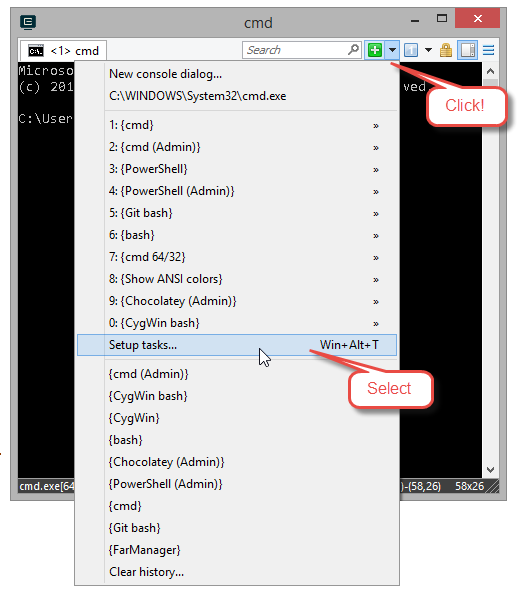
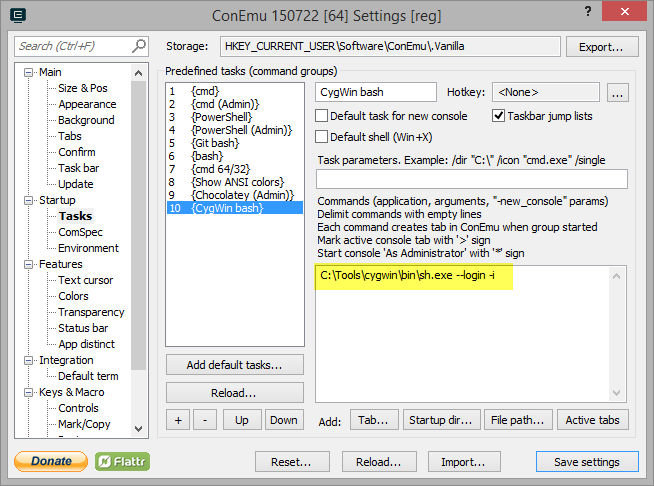
SNAGHTML1cedbe1

image

Now you can open a new CygWin bash console in ConEmu which results in a Unix-like prompt:
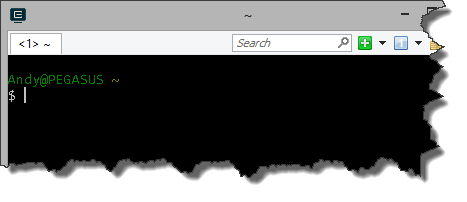
SNAGHTML1d0bdff

You’ll note that this prompt is located at your home directory (identified by the ~). On my system CygWin is installed to c:\tools\cygwin. In the CygWin folder there’s a ‘home’ subfolder which itself contains a further subfolder named after your login name. That’s your CygWin home folder (~) and that’s where I added the Vagrant files and scripts required to build out the Consul cluster later on.
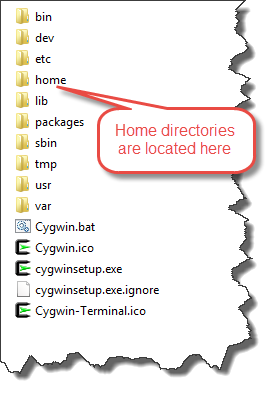
SNAGHTML1dea042

The tools above are really just ‘nice to haves’. The main components you’ll need are VirtualBox and Vagrant. Both can be installed by the trusty Chocolatey.

c:\> choco install virtualbox 
c:\> choco install vagrant 

What do we need in our Consul cluster?

The first thing to note is that Consul – actually the Consul agent - can run in 2 basic modes: server, or client. Without going in to details (you can read the documentation here) a cluster should contain 3 to 5 Consul agents running in server mode and it’s recommended that the servers run on dedicated instances.

So that’s the first requirement: at least 3 Consul agents running in server mode each in a dedicated instance.

Consul also includes a web-based user interface, the Consul Web UI. This is actually hosted by a Consul agent by passing in the appropriate configuration options at start-up time.

So the second requirement is to have a Consul agent running in client mode which also hosts the Consul Web UI. We’ll create this in a separate instance.

That’s 4 virtual machines each hosting a Consul agent. Three instances will be running the agent in server mode and one in client mode and will host the Consul Web UI.

Creating the working folder

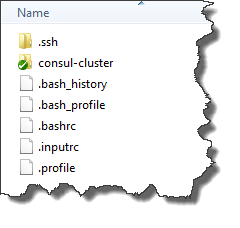
If you’re not using CygWin you just need to create a folder to work in. If you’re using CygWin the first job is to create a working folder in the CygWin home. I called mine ‘consul-cluster’. You’ll see from the image below that I also created a Git repository in this folder, hence the green tick courtesy of Tortoise Git. I added all of my Vagrant files and scripts to Git (infrastructure as code!).
SNAGHTML2e0f86d

The Vagrantfile

The main artefact when using Vagrant is the Vagrantfile.

“The primary function of the Vagrantfile is to describe the type of machine required for a project, and how to configure and provision these machines.” [2]

I created the Vagrantfile in the consul-cluster folder I created previously. Let’s cut to the chase. Here’s my completed Vagrantfile.

# -*- mode: ruby -*-
# vi: set ft=ruby :
#^syntax detection

VAGRANTFILE_API_VERSION = "2"

Vagrant.configure(VAGRANTFILE_API_VERSION) do |config|

  config.vm.box = "hashicorp/precise64"
   
  config.vm.define "consul1" do |consul1|
    config.vm.provision "shell" do |s|
        s.path = "provision.sh"
        s.args   = ["/vagrant/consul1/config.json"]
    end
    consul1.vm.hostname = "consul1"
    consul1.vm.network "private_network", ip: "172.20.20.10"
  end
  
  config.vm.define "consul2" do |consul2|
    config.vm.provision "shell" do |s|
        s.path = "provision.sh"
        s.args   = ["/vagrant/consul2/config.json"]
    end
    consul2.vm.hostname = "consul2"
    consul2.vm.network "private_network", ip: "172.20.20.20"
  end
  
  config.vm.define "consul3" do |consul3|
    config.vm.provision "shell" do |s|
        s.path = "provision.sh"
        s.args   = ["/vagrant/consul3/config.json"]
    end
    consul3.vm.hostname = "consul3"
    consul3.vm.network "private_network", ip: "172.20.20.30"
  end
  
  config.vm.define "consulclient" do |client|
    config.vm.provision "shell" do |s|
        s.path = "provisionclient.sh"
        s.args   = ["/vagrant/consulclient/config.json"]
    end
    client.vm.hostname = "consulclient"
    client.vm.network "private_network", ip: "172.20.20.40"
  end
end

A Vagrantfile can be used to provision a single machine but I wanted to use the same file to provision the 4 machines needed for the cluster. You’ll notice there are 4 config.vm.define statements in the Vagrantfile with each one defining one of the 4 machines we need. The first 3 (named consul1, consul2 and consul3) are our Consul servers. The last (named consulclient) is the Consul client that will host the web UI.

Each of the machines we provide a host name (client.vm.hostname) and an IP address (client.vm.network). The IP addresses are important because we will be using them later when we configure the Consul agents to join the cluster.

Vagrant boxes

Prior to the config.vm.define statements there’s a line that defines the config.vm.box. Because this is outside the config.vm.define statements it’s effectively global and will be inherited by each of the defined machines that follow.

The config.vm.box statement specifies the type of box we are going to use. A box is a packaged Vagrant environment and in this case it’s the hashicorp/precise64 box - a packaged standard Ubuntu 12.04 LTS 64-bit box.

Vagrant provisioning

For each of the machines we’ve defined there is a ‘provisioner’ (config.vm.provision). In Vagrant provisioning is the process by which you can install software and alter configuration  as part of creating the machine. There are a number of provisoiners available including some that leverage Chef, Docker and Puppet, to name but a few. However in this case all I needed to do was to run Bash scripts on the server. That’s where the Shell Provisioner comes in.

The 3 server instances (consul1, consul2, and consul3) all run a Bash script called provision.sh. Let’s take a look at it.

#!/bin/bash

# Step 1 - Get the necessary utilities and install them.
apt-get update
apt-get install -y unzip

# Step 2 - Copy the upstart script to the /etc/init folder.
cp /vagrant/consul.conf /etc/init/consul.conf

# Step 3 - Get the Consul Zip file and extract it.  
cd /usr/local/bin
wget https://dl.bintray.com/mitchellh/consul/0.5.2_linux_amd64.zip
unzip *.zip
rm *.zip

# Step 4 - Make the Consul directory.
mkdir -p /etc/consul.d
mkdir /var/consul

# Step 5 - Copy the server configuration.
cp $1 /etc/consul.d/config.json

# Step 6 - Start Consul
exec consul agent -config-file=/etc/consul.d/config.json

The steps are fairly straight forward. We’ll take a look at step 2 in more detail shortly but basically the process is as follows:

  • Install the unzip utility so we can extract Zip archives.
  • Copy an upstart script to /etc/init so the Consul agent will be restarted if we restart the virtual machine.
  • Grab the Consul Zip file containing the 64-bit Linux distribution. Unzip it to /usr/local/bin.
  • Make directories for containing the Consul configuration and its data directory.
  • Copy the Consul configuration file to /etc/consul.d/ (more on that shortly too).
  • Finally, start the Consul agent using the configuration file.


Hang on. How can we be copying files? Well when you provision a machine using Vagrant the working folder will be mounted inside the virtual machine (at /vagrant). That means that all the files you create in the working folder are available inside the virtual machine.

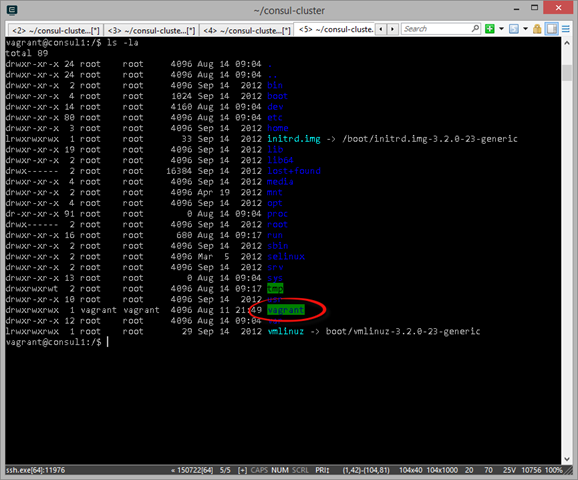
I know we haven’t actually provisioned anything yet but here’s an example from a  machine I have provisioned with Vagrant. If I SSH onto the box and look at the root of the file system I can see the /vagrant directory.
image

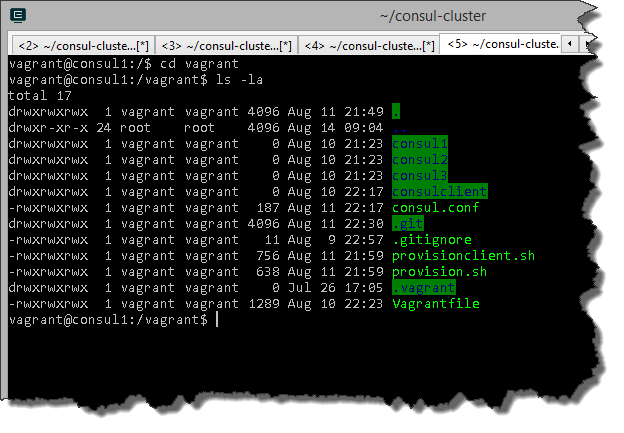
Listing the contents of the /vagrant directory reveals all the files and folders in my working directory on the host machine including the Vagrantfile and provision.sh.
 SNAGHTML80e030

You’ll also notice that in step 5 of provision.sh we are using an argument passed into the script ($1). This argument is used to pass in the path to the appropriate Consul configuration file for the instance because there is a different configuration file for each Consul agent. You can see this argument being set in the Vagrant file in the Shell provisioner. For example:

s.args   = ["/vagrant/consul1/config.json"]

The upstart script

The upstart script looks like this:

description "Consul process"

start on (local-filesystems and net-device-up IFACE=eth0)
stop on runlevel [!12345]

respawn

exec consul agent -config-file=/etc/consul.d/config.json

This script is copied to /etc/init on the virtual machine in step 2 of provision.sh. This simply makes sure that the agent is restarted when the box is restarted.

Why is this necessary? Well, you won’t always run provisioning when you start a box. Sometimes it’s simply restarted and provision.sh doesn’t get run. Under these circumstances you want to make sure Consul is fired up.

Consul configuration

Consul configuration can be handled by passing in arguments to the Consul agent on the command line. An alternative is to use a separate configuration file, which is what I’ve done. Each instance has a slightly different configuration but here’s the configuration for the first server, the consul1 instance:

{
    "bootstrap": true,
    "server": true,
    "datacenter": "dc1",
    "data_dir": "/var/consul",
    "encrypt": "Dt3P9SpKGAR/DIUN1cDirg==",
    "log_level": "INFO",
    "enable_syslog": true,
    "bind_addr": "172.20.20.10",
    "client_addr": "172.20.20.10"
}

In each Consul cluster you need one of the servers to start up in bootstrap mode. You’ll note that this server has the bootstrap configuration option set to true. It’s the only server in the cluster to specify this. In Consul terms this is manual bootstrapping where we are specifying which server will be the leader. With later versions of Consul it is possible to use automatic bootstrapping.

The configuration for the other servers looks something like this:

{
    "bootstrap": false,
    "server": true,
    "datacenter": "dc1",
    "data_dir": "/var/consul",
    "encrypt": "Dt3P9SpKGAR/DIUN1cDirg==",
    "log_level": "INFO",
    "enable_syslog": true,
    "bind_addr": "172.20.20.20",
    "client_addr": "172.20.20.20",
    "start_join": ["172.20.20.10", "172.20.20.30"]
}

Note that the bootstrap configuration option is now set to false. We also tell the Consul agent what servers it is to join to form the cluster by specifying the IP addresses of the other 2 servers (start_join).

The Consul agent running in client mode

To provision the machine hosting the Consul agent running in client mode we use a slightly different provisioning script (provisionclient.sh). This script simply adds a new step to download the Consul Web UI and extract it in the /usr/local/bin directory of the provisioned machine.

#!/bin/bash

# Step 1 - Get the necessary utilities and install them.
apt-get update
apt-get install -y unzip

# Step 2 - Copy the upstart script to the /etc/init folder.
cp /vagrant/consul.conf /etc/init/consul.conf

# Step 3 - Get the Consul Zip file and extract it.  
cd /usr/local/bin
wget https://dl.bintray.com/mitchellh/consul/0.5.2_linux_amd64.zip
unzip *.zip
rm *.zip

# step 4 - Get the Consul UI
wget https://dl.bintray.com/mitchellh/consul/0.5.2_web_ui.zip
unzip *.zip
rm *.zip

# Step 5 - Make the Consul directory.
mkdir -p /etc/consul.d
mkdir /var/consul

# Step 6 - Copy the server configuration.
cp $1 /etc/consul.d/config.json

# Step 7 - Start Consul
exec consul agent -config-file=/etc/consul.d/config.json

We also use a slightly different Consul configuration file:

{
    "bootstrap": false,
    "server": false,
    "datacenter": "dc1",
    "data_dir": "/var/consul",
    "ui_dir": "/usr/local/bin/dist",
    "encrypt": "Dt3P9SpKGAR/DIUN1cDirg==",
    "log_level": "INFO",
    "enable_syslog": true,
    "bind_addr": "172.20.20.40",
    "client_addr": "172.20.20.40",
    "start_join": ["172.20.20.10", "172.20.20.20", "172.20.20.30"]
}

In this configuration file we add the directory where the Consul Web UI has been extracted on the virtual machine (ui_dir).

Wrapping up

In the following blog post (Setting up a Consul cluster for testing and development with Vagrant (Part 2)) we’ll look at how you actually use the Vagrantfile and scripts here to provision the server cluster.

You can get the files referred to in this blog post from BitBucket.

References

[1] Introduction to Consul

[2] Vagrantfile

Tuesday, 9 June 2015

Jaybird BlueBuds X bluetooth earbuds review

setI workout a lot - always have and hopefully always will – but one thing I hate is the piped music you get in most gyms. On the other hand I find wired headphones really irritating so the idea of having some wireless Bluetooth earbuds was very appealing. Enter the Jaybird BlueBuds X.

So why the review? Well unfortunately what sounded like a great idea fell down in practice and I thought I’d relate my experience.

If you’re in a rush skip to Quality below. Also see the Updates at the bottom where Jaybird are being a pain giving me a replacement.

Appearance

I have the black BlueBuds X. Considering the amount of electronics and battery they have to cram in they are reasonably compact. The included carry case was reasonably practical and looks good. Overall, the appearance of the product was fine.

Fit

There are 2 ways of wearing the BlueBuds X. The first way is the most obvious allowing the cord that connects each earbud to dangle downwards from the ear and to loop the cord around your neck. This really didn’t work for me because the weight of the cord acted to pull the earbuds out as I exercised.


buttonsAn alternative is to use an over ear placement. When wearing the BlueBuds this way the cord is kept short and the weight of the cord is supported by your ears. This is the way I used them. The one concern I have is that wearing them like this puts the control unit in direct contact with your head which might allow sweat to penetrate and cause damage.


secure-fitOne novel feature of the BlueBuds is the inclusion of flexible ‘Secure Fit Ear Cushions’. These comma shaped attachments lock the earbuds in place inside your ear. I found they worked quite well and provided as secure a fit as you could reasonably expect from earbuds.

Sound quality

I listen to a lot of Rock-based music when I’m in the gym with subgenres ranging from aggressive metal to alternative. I found the sound quality of the BlueBuds X to be really good for this type of music. It’s quite well balanced and doesn’t have that excessive bass response you get from Dr Dre Beats.

As mentioned above I found the fit very good and the ear inserts blocked out a lot of background noise so overall the sound quality was very good.

You can make phone calls with the BlueBuds but this is something I did very infrequently (I was using an iPhone 5S). Standing in the gym apparently talking to yourself isn’t my style but on the few occasions I did use them to make calls I could hear the other party on the call very well but they usually struggled to hear me. I guess the placement of the microphone is too far away from your mouth to be particularly effective.

Even if you don’t use the BlueBuds to make calls it is useful to get the audio notifications for incoming texts etc.

Range

I tended to keep my phone in a small bag I carry around with me in the gym. I always have gloves, wraps and the such like so it was natural to pop my phone in the same bag. I never had a dropout when using the BlueBuds even when walking several meters away from my bag.

Connecting and Charging

Charging the BlueBuds was easy. All that was required was to connect them to a PC using the included USB cable. One of the earbuds has an indicator light that show red while charging and which turns green when charging is complete.

Connecting them to my iPhone 5S was a doddle. I just switched on the BlueBuds, activated Bluetooth on the phone and they were detected right away.

Quality

OK, this is where it all goes wrong. In 6 months I have gone through 2 pairs of BlueBuds, both failing in exactly the same way.

I experienced occasional uninvited power-offs and loss of audio but these incidents were infrequent and restarting the BlueBuds always fixed the issue. However, eventually I hit another issue with both pairs I have owned, an issue that killed the BlueBuds stone dead.

The first indication that something was wrong would be turning up at the gym to find the BlueBuds would not switch on. This despite having fully charged them. I’d return home assuming the charge hadn’t worked and would plug them in using the USB cable. On connecting the BlueBuds to the PC the indicator light would immediately turn green suggesting they were fully charged. I’d leave them on to charge ‘just in case’ but they still would not switch on. End of story. Dead BlueBuds.

The cause of the failure is a mystery but you have to suspect they are not as sweat proof as Jaybird would have us believe. I do wonder if the over ear fitting is part of the problem because it puts the small plastic control unit that holds the buttons in contact with your head.

Support and Returns

Jaybird support was quite good overall with prompt responses to contact made using the support page on their website. The most irritating thing was being asked to return the BlueBuds to the USA. I’m in the UK so I really didn’t want the added expense. Jaybirds alternative is for you to send 2 photographs to Jaybird: one with the headphones intact and the other with the wire cut. You also have to include a piece of paper in each photo showing your signature and the date.

Really?

I mean, really?

Good job Jaybird on making me feel like you think I’m trying to con you out of a new pair of BlueBuds. Definitely not the kind of customer experience I appreciate.

Conclusion

A great idea and so close to being an excellent product. Wearability, usability and sound quality were great. The only issue was the build quality. The BlueBuds are clearly not up to the wear and tear of gym use and the most likely culprit is sweat.

Having had 2 pairs fail on me in exactly the same way I can only suggest you avoid the Jaybird BlueBuds X if you intend to use them when training. At £123.00 a pop they are far too expensive to think of as a disposable product.

Update 10/06/2014

After my second pair of BlueBuds failed I contacted Jaybird again for a replacement. This is the response I got:

XXXX XXXXX (Jaybird)
Jun 9, 2:56 PM
Hi,
Try this first,
Firmly but quickly press the power button 8 times and then hold for 5 seconds. Repeat 2 times.
When finished, plug the headset into the charger and tell me what you see.
Most of the time if the headset turns RED it will charge and function normally again, Make sure that if the light is red to fully charge the unit again.
Try holding the power button down for 10 seconds also some times it takes longer to turn them on.
let us know and if this does not work and I would be happy to help with an exchange.
My best,
XXXX

Now I was stupid enough to actually try this and guess what? No change. Back to Jaybird.

Incidentally, I was told when the last pair failed that pressing and holding the power button for 10 seconds does a factory reset.

Update 12/06/2015

OK, I’m getting pretty fed up with Jaybird now. For some reason I can’t get their support person to understand that the BlueBuds were bought online and that there’s no physical receipt. He really wants a ‘picture’.

Frankly I’m done. They don’t work anyway.

Sunday, 31 May 2015

Creating a JSON service using TopShelf and Nancy

I love TopShelf. I first encountered it when I was looking at MassTransit. Both MassTransit and TopShelf originated from the same developers (Chris Patterson and Dru Sellers). The NServiceBus host is also built with TopShelf.

What TopShelf allows you to do is to write a service as a console application – which is great for development and testing – but to deploy it later as a Windows service. You do this by simply by passing in some command line parameters to the console application. Fantastic.

“Topshelf is a framework for hosting services written using the .NET framework. The creation of services is simplified, allowing developers to create a simple console application that can be installed as a service using Topshelf. The reason for this is simple: It is far easier to debug a console application than a service. And once the application is tested and ready for production, Topshelf makes it easy to install the application as a service.” – TopShelf Overview

I have been encouraged to look at Nancy by a colleague (thanks Matt!) who has used it on a number of projects. It’s been on my radar for a while but somehow I’ve never got round to looking at it. As it happens for a small side project I’m working on I need to expose some JSON data from a service. How opportune!

“Nancy is a lightweight, low-ceremony, framework for building HTTP based services on .Net and Mono. The goal of the framework is to stay out of the way as much as possible and provide a super-duper-happy-path to all interactions.” – Introduction (Nancy documentation)

Visual Studio and NuGet packages

Firstly I created a Visual Studio solution and a console application project. Once that was done I installed a number of NuGet packages:

  • TopShelf
  • Ninject (for dependency injection)
  • Ninject.Web.Common (so we can scope Ninject bindings to an HTTP request)
  • TopShelf.Ninject (which provides extensions to TopShelf so it can painlessly use Ninject)
  • Nancy
  • Nancy.Hosting.Self (so Nancy can be hosted inside the service)

I also added a few other packages for logging, configuration and JSON serialisation but they aren’t core to the task at hand so I’ll ignore them for now.


Defining the service

The first thing I did was to define a service contract - an interface - for the service that would be hosted by TopShelf.

namespace Andy.French.Region.Growing.Venue.Service
{
    /// <summary>
    /// Classes implementing this interface provide methods for getting
    /// or manipulating venue data.
    /// </summary>
    public interface IVenueService
    {
        /// <summary>
        /// Starts the service.
        /// </summary>
        void Start();

        /// <summary>
        /// Stops the service.
        /// </summary>
        void Stop();
    }
}
The Start() and Stop() methods align with the TopShelf service configurator that allows you to assign actions when a service is started and stopped. More on that later.

The implementation of the interface would be the service to be hosted by TopShelf and which would spin up the Nancy endpoint. Let’s see what that looked like.

namespace Andy.French.Region.Growing.Venue.Service
{
    using System;
    using Andy.French.Configuration.Service;
    using Andy.French.Logging;
    using global::Nancy.Hosting.Self;

    /// <summary>
    /// The venue service.
    /// </summary>
    public class VenueService : IVenueService
    {
        /// <summary>The logger factory.</summary>
        private readonly ILoggerFactory loggerFactory;

        /// <summary>The logger.</summary>
        private ILogger logger;

        /// <summary>The nancy host.</summary>
        private NancyHost nancyHost;

        /// <summary>The host URL.</summary>
        private string hostUrl;

        /// <summary>The JSON file path.</summary>
        private string jsonFilePath;

        /// <summary>
        /// Initialises a new instance of the <see cref="VenueService"/> class.
        /// </summary>
        /// <param name="loggerFactory">The logger factory.</param>
        /// <param name="configurationService">The configuration service.</param>
        public VenueService(ILoggerFactory loggerFactory, IConfigurationService configurationService)
        {
            this.loggerFactory = loggerFactory;
            this.hostUrl = configurationService.GetString("host.url");
        }

        /// <summary>
        /// Gets the logger.
        /// </summary>
        /// <value>The logger.</value>
        public ILogger Logger
        {
            get
            {
                if (this.logger == null)
                {
                    this.logger = this.loggerFactory.CreateInstance(typeof(VenueService));
                }

                return this.logger;
            }
        }

        /// <summary>
        /// Starts the service. In this case it starts the Nancy endpoint.
        /// </summary>
        public void Start()
        {
            this.Logger.Information("The venue service is starting.");

            this.nancyHost = new NancyHost(new Uri(this.hostUrl));
            this.nancyHost.Start();
        }

        /// <summary>
        /// Stops the service. In this case it stops and disposes of the Nancy host.
        /// </summary>
        public void Stop()
        {
            this.Logger.Information("The venue service is stopping.");
            this.nancyHost.Stop();
            this.nancyHost.Dispose();
        }
    }
}
The interesting stuff appears around line 63 in the Start() method. Here I create a Nancy host and start it. The URL passed in (the hostUrl) is loaded from configuration but its actually something like http://localhost:1234. In the Stop() method I stop the Nancy host and dispose of it.

Basically, this is all the code it took to get the Nancy host up-and-running but there was a little bit of plumbing required to set up routes and handlers.

The Nancy module

At this point I had a Nancy host but that was only part of the story. I also needed to define a route and a handler for an HTTP verb (e.g. GET). It’s actually very easy to do this in Nancy and is accomplished using a Nancy module.

namespace Andy.French.Region.Growing.Venue.Service.Nancy
{
    using System.Collections.Generic;
    using System.IO;
    using System.Threading.Tasks;

    using Andy.French.Configuration.Service;
    using Andy.French.Region.Growing.Domain;

    using global::Nancy;

    using Newtonsoft.Json;

    /// <summary>
    /// A Nancy module for the venues service.
    /// </summary>
    public class VenuesModule : NancyModule
    {
        /// <summary>The venues.</summary>
        private List<Venue> venues;

        /// <summary>The JSON file path.</summary>
        private string jsonFilePath;

        /// <summary>
        /// Initialises a new instance of the <see cref="VenuesModule"/> class.
        /// </summary>
        /// <param name="configurationService">The configuration service.</param>
        public VenuesModule(IConfigurationService configurationService)
        {
            this.jsonFilePath = configurationService.GetString("json.file.path");

            this.Get["/venues", true] = async (x, ct) =>
            {
                await this.LoadVenues();
                return this.Response.AsJson(this.venues);
            };
        }

        /// <summary>
        /// Loads the venues.
        /// </summary>
        /// <returns>The task to load the venues.</returns>
        private async Task LoadVenues()
        {
            await Task.Factory.StartNew(
                () =>
                    {
                        this.venues = JsonConvert.DeserializeObject<List<Domain.Venue>>(File.ReadAllText(this.jsonFilePath));
                    });
        }
    }
}

You can see that I created a class that extended NancyModule and defined a route and a handler in the constructor (line 33). This basically says that we are expecting GET requests to arrive at ‘/venues’ and defines what we want to do with them. In my naïve service I simply load a JSON file and return the contents in the response as JSON (line 36).

Dependency injection

You’ll notice that the Nancy module and the Venue service both have dependencies passed in on their constructors (e.g. a logger factory or a configuration service). To get these resolved I needed to plug in Ninject. That was done with a simple Ninject module:

namespace Andy.French.Region.Growing.Venue.Service.Ninject
{
    using Andy.French.Configuration.Service;
    using Andy.French.Logging;
    using Andy.French.Logging.Log4Net;

    using global::Ninject.Modules;
    using global::Ninject.Web.Common;

    /// <summary>
    /// A <c>Ninject</c> module.
    /// </summary>
    public class VenueServiceModule : NinjectModule
    {
        /// <summary>
        /// Loads the module into the kernel.
        /// </summary>
        public override void Load()
        {
            this.Bind<ILoggerFactory>().To<LoggerFactory>().InRequestScope();
            this.Bind<IVenueService>().To<VenueService>().InRequestScope();
            this.Bind<IConfigurationService>().To<AppSettingsConfigurationService>().InRequestScope();
        }
    }
}

That was all there was to that.

Wiring up TopShelf

All that remained was to bring everything together with TopShelf. That was done in the main program method:

namespace Andy.French.Region.Growing.Venue.Service
{
    using Andy.French.Region.Growing.Venue.Service.Ninject;

    using Topshelf;
    using Topshelf.Ninject;

    /// <summary>
    /// The main application program.
    /// </summary>
    public class Program
    {
        /// <summary>
        /// Defines the entry point of the application.
        /// </summary>
        public static void Main()
        {
            HostFactory.Run(hostConfigurator =>
            {
                hostConfigurator.UseNinject(new VenueServiceModule());

                hostConfigurator.Service<IVenueService>(serviceConfigurator =>
                {
                    serviceConfigurator.ConstructUsingNinject();
                    serviceConfigurator.WhenStarted(service => service.Start());
                    serviceConfigurator.WhenStopped(service => service.Stop());
                });

                hostConfigurator.RunAsLocalSystem();
                hostConfigurator.SetDescription("The venue service provides venue data.");
                hostConfigurator.SetDisplayName("Region Growing Venue Service");
                hostConfigurator.SetServiceName("VenueService"); 
            });
        }
    }
}

Trying it out

Aside from some log4Net configuration that was pretty much it. Hitting F5 in Visual Studio resulted in the console application being launched and the service starting up. You can see the INFO message indicating the Start() method of the service has been called and therefore the Nancy host has been started.


Using the Fiddler composer I fired a request at the service.


This resulted in JSON being returned (albeit a small incomplete example at this stage). The content type was correctly set to application/json.


Hitting Ctrl-C caused TopShelf to call the Stop() method of the service which stops and disposes of the Nancy host.


That’s it! All too easy.

Sunday, 24 May 2015

How to setup a TeamCity build server with Azure

I thought it would be interesting to see what it would take to setup a Continuous Integration (CI) build server with Azure infrastructure. No doubt there are alternative ways of doing it but this approach certainly got me to a point where had a CI server installed and ready to go. In this case I used TeamCity.

Throughout this post I’ll be using the updated Azure portal.

Create a virtual network (optional)

The first thing I did was create a Virtual Network (VN). Why? Well, this would allow backend virtual machines to communicate with each other should that be necessary. If you’re unsure if you need one this article might help.

To set up a VN click the NEW icon and choose Networking > Virtual Network.

SNAGHTML6d27dde
To create a VN enter a name and click ADDRESS SPACE. This section is required. In the example above I’ve added an Address space CIDR block of 10.0.0.0/16. I’ve then created a subnet with a CIDR block of 10.0.1.0/24. I’ll be adding other resources such as a Virtual Machine (VM) to this subnet.

You might be interested in this if you’re new to Azure VN: http://azure.microsoft.com/en-gb/documentation/services/virtual-network/

Create storage account (optional)

The next thing I did was to create a Storage Account. This would be used for the virtual disks etc. required by the VM I created later. You can omit this step in which case a storage account will be created for you when you create the virtual machine.

SNAGHTML6d1ea58

To add a new storage account click the NEW icon and go to Data + Storage > Storage. It’s quite annoying but when adding the name for your storage account you’re restricted to letters and numbers only. If like me you use a naming convention that involved hyphens you’re hosed.

Create SQL server database (optional)

I chose to use a SQL Server database for TeamCity. Of course there are other options including the default HSQLDB database engine that ships with TeamCity. The problem with the default database is that it can crash and lose your data as well as other problems:

“The internal database may crash and lose all your data (e.g. on out of disk space condition). Also, internal database can become extremely slow on large data sets (say, database storage files over 200Mb). Please also note that our support does not cover any performance or database data loss issues if you are using the internal database.
In short, do not EVER use internal HSQLDB database for production TeamCity instances.” - Setting up an External Database

SQL Server it is. To add a new SQL Server database click the NEW icon and go to Data + Storage > SQL Database. You may need to add a new SQL Server instance or you can use an existing one.


SNAGHTML6deb84c


It’s worth having a look at the pricing information for SQL Server in Azure. I chose S0 for this installation that comes out at about £9.16 per month at the time of writing.


SNAGHTML6e17f3c


You can get the connection details for your server from the settings but if you try to connect straightaway using SQL Server Management Studio (SSMS) from your local machine you will be disappointed. Before you can connect you need to punch a hole in the firewall.

Select your SQL Server from the browse list in the Azure portal and go to Settings > Firewall. Add a rule with a name and an IP address range. I didn’t add a range because I just wanted my desktop machine to be able to connect - so the start and end IP addresses were the same.


SNAGHTML6e87ad5


Don’t forget to save! I did first time around.

SNAGHTML6e93a9b


At this point I was able to connect to the newly created SQL Server using SSMS and was able to create a blank database ready to be used by TeamCity. I also added a login and a database user, something like this:

CREATE LOGIN teamcity 
    WITH PASSWORD = 'password_goes_here' 
GO

CREATE USER teamcity
    FOR LOGIN teamcity
GO

Create a Virtual Machine

So far I had a virtual network, a storage account and a SQL Server complete with blank database. Now it was time to create the Virtual Machine (VM) ready to install TeamCity.
To create a new VM click the NEW icon and go to Compute > Windows Server 2012 R2 Datacenter. Fill in the host name, user name and password. The next step is to choose your pricing plan. For this example I chose D1 but you can always check out the pricing guide.


SNAGHTML701ba07

After choosing the price band etc. it’s time to set up the networking side of things. Remember the VN I setup right at the beginning? Well, this is where it came in to play. By selecting the OTIONAL CONFIGURATION I was able to set the Virtual Network and assign the VM to a subnet under NETWORK.


SNAGHTML70fe672

I was also able to assign the storage account that I created earlier on too. This time under the STORAGE ACCOUNT in the optional configuration.

So, at this point I had a Virtual Machine on my Virtual Network and using my storage account.Time to logon to the Virtual Machine.

Logon to the Virtual Machine and install TeamCity

Logging on the the VM was quite easy. Just click on Connect when viewing the VM properties.

 
SNAGHTML7159d18
HINT: I had a few issues with connecting this was from the new portal. I was able to connect by switching to the old portal and doing it from there.

Once I had logged in to the new VM the first job was to download the TeamCity installation package an run it. For this exercise I installed to the default locations but you might consider setting up a separate disk in your VM. Note that I configured TeamCity to run on port 80. More on this later.

Once the basic installation was complete I ran the browser-based UI which starts the setup of TeamCity. When it came to the database I selected the SQL Server database type and entered the details I prepared earlier on my Azure-based SQL Server.

One thing to remember is you need to install the SQL Server JDBC driver by copying the jar into the JDBC directory.


SNAGHTML78e711a

Once the setup was complete I could check with SSMS back on my local machine and see the tables etc. had been created in the SQL Server database.


SNAGHTML798609e
At this point TeamCity was installed and the UI was viewable locally on the VM on port 80. However to make the TeamCity UI visible from my local development machine there were a couple more steps to take.

Firstly, in the VM needed to add some firewall rules added to allow inbound and outbound traffic on port 80. To do this I opened the Server Manager and selected Tools > Windows Firewall with Advanced Security.


SNAGHTML7946da2

Then it was a case of adding the new rules. A picture is worth a thousand words so here’s a few thousand words worth showing the basic steps and settings for the inbound rule (the outbound rule is much the same):


image


image


image


image


image


image


With the firewall rules completed in the VM there was one thing left to do: add a firewall rule to the VM in the Azure portal. This involved the following:

  • Select the VM in the browse list in the Azure portal.
  • Click Settings.
  • Click Endpoints.
  • Click Add and create a new endpoint for the TCP protocol on port 80. 


SNAGHTML79a4ea3

With that done I was able to view the TeamCity UI over the web from my local development machine.

Job’s a good ‘un.